Browser games on a phone: touch controls, files and saves
Choose a project with an actual touch layout before downloading large game files. A game that draws on a phone screen may still need a keyboard, mouse or controller.
By Playable · Written
Start with a usable input scheme
HCEMobile offers editable touch layouts; CSJS enables Xash3D’s touch interface; PrinceJS uses screen regions and drag gestures. Pick around the controls you want, as well as the game.
Other ports need a different plan. JohnImril’s Diablo Web describes touch controls as needing improvement. Arxwasm explicitly lacks playable touch input. Opening either page on a phone does not remove that limitation.
Prepare files and screen space
Put any required owned files somewhere the phone’s file picker can reach. Check the exact edition before transferring a large archive: an Xbox Halo disc image, a Diablo MPQ and a native app package are not interchangeable.
Follow the project’s installation route. HCEMobile recommends home-screen installation; PrinceJS documents landscape play and a home-screen option. CSJS requests landscape fullscreen where supported. Installing a web app does not automatically make every game work offline or preserve its saves in another browser.
Rotate the device before arranging touch controls. Check that movement and action areas can be used together without obscuring the game. If the layout does not suit you, try the controller setup guide for projects that support a pad.
Handle HCEMobile’s common problems
The creator’s guide specifies iOS 17 or later for iPhone/iPad and Chrome for Android. Importing a disc can require up to 1.8 GB for maps, in addition to the image you selected. Leave the import open until it finishes.
For memory errors, close other apps and tabs. For black levels, try Lower-resolution textures in Settings and data. If an iPhone is silent, check the hardware silent setting or the app’s sound-on-silent option.
These settings belong to HCEMobile. Use the Halo guide to distinguish it from Mitchell Hynes’s separate host before following its recovery instructions.
Protect progress before switching
After a short session, save, close the game normally and reopen the same client to check that you can continue. Export a backup where the project offers one, especially before changing browsers or reinstalling an app. See the save and restore workflow.
For a match with friends, confirm the same host and game version first. Phone fullscreen, touch comfort, network access and storage are separate requirements; solving one does not solve all four. Try a brief session before planning a long one.
Project reading
See the creators’ setup instructions and feature guides.
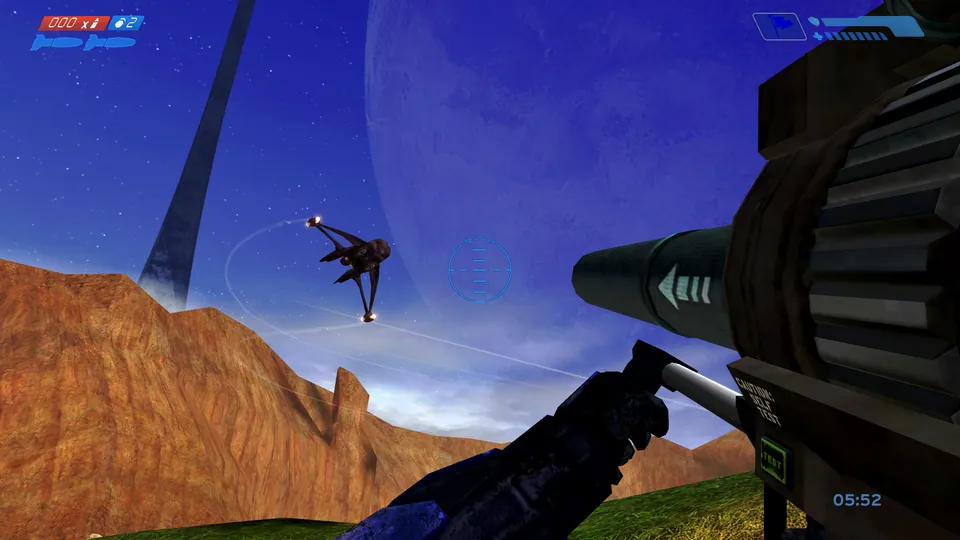
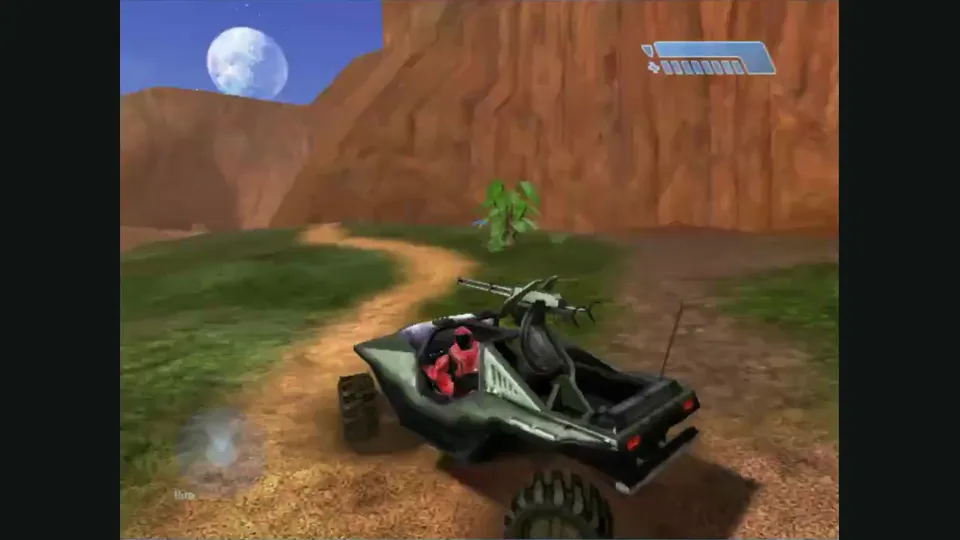
Halo: Combat Evolved multiplayer publisher screenshot from the Anniversary store listing. Original-game reference; not an HCEMobile capture.
Image credits ↗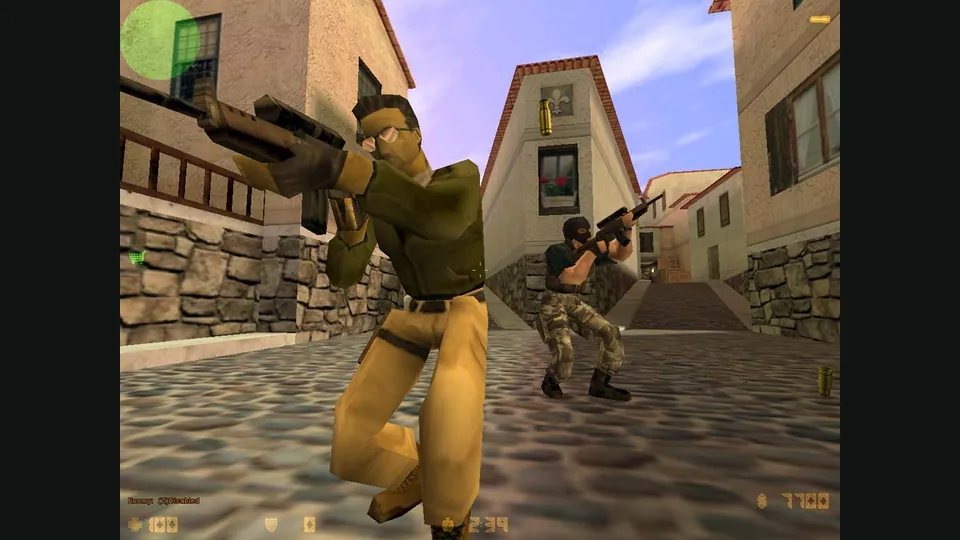
Counter-Strike publisher screenshot. Original-game reference; not the CSJS browser build.
Image credits ↗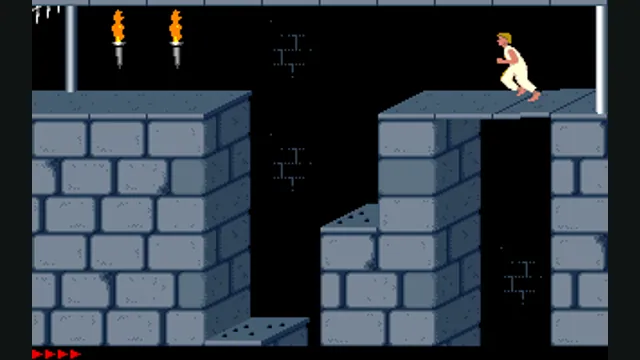
Prince of Persia DOS original-game reference, frame 60 of the linked gameplay animation; not an SDLPoP or PrinceJS capture.
Image credits ↗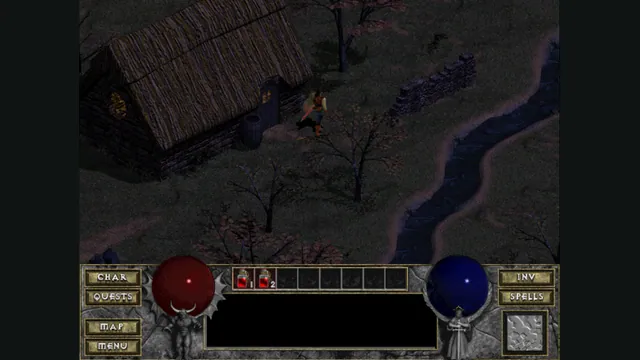
Diablo Web by JohnImril creator screenshot.
Image credits ↗A modernized client with shareware, MPQ import and save export.
How to use a controller with a browser game
Pairing a controller is only the first step. The browser must expose it, and the specific game must map its sticks and buttons. Start with a project that documents gamepad support.
Read guide : Connect a controllerProject image · creditsBack up browser game saves and check the restored game
Save inside the game, export a separate backup, then import and load it before removing the original. Confirm the restored character, map or level inside the game.
Read guide : Back up your browser savesProject image · creditsCounter-Strike in a browser: 1.6 matches, bunnyhop or surf?
Choose CSJS for a 1.6 match with the least preparation, WebXash for your own files and server, or a dedicated movement game for hopping and surfing.
Read guide : Choose your Counter-Strike sessionReference image · credits