Counter-Strike in a browser: 1.6 matches, bunnyhop or surf?
Choose CSJS for a 1.6 match with the least preparation, WebXash for your own files and server, or a dedicated movement game for hopping and surfing.
By Playable · Written
Choose your client
For a Counter-Strike 1.6 team match, start with CSJS. Its live server list removes the need to prepare a server address or import your own folders. Choose WebXash when you already have your own game files and a compatible server to join. For a short solo movement session, choose Surfd instead.
CSJS and WebXash are separate browser clients for 1.6 using Xash3D work. bunnyhop.lol and Surfd build games around Source-style movement. Their time trials are not Counter-Strike: Source’s complete team shooter, and none of these listings is Counter-Strike 2.
Swipe or scroll to compare all columns →
| Project | Choose it for | Main tradeoff |
|---|---|---|
| CSJS | A 1.6 match from a live server list; desktop or touch controls | Available rooms, maps and rules depend on the server |
| WebXash | Your own files and an explicitly chosen compatible server | Manual import and WebSocket address; keyboard and mouse recommended |
| bunnyhop.lol | Repeated jumping, timed routes and movement styles | Desktop keyboard and mouse; no phone/tablet support |
| Surfd | Ramp surfing, solo practice and checkpoint feedback | Keyboard and mouse; practice runs do not set public records |
Join a CSJS server
Open the CSJS server browser, select a server or Quick play, enter your player name and join. A named server is the clearer choice when meeting friends: tell them which one you picked. The list can change as servers come and go.
Voice is optional. In the join dialog, enable it only if you want to speak, select your microphone and allow the browser’s microphone prompt. Hold K to talk and release it to mute. The voice room follows your game server; you can join without voice.
If voice fails, check the selected input and site microphone permission before changing the rest of your setup. Do not confuse a working microphone with a successful server connection.
For friends, agree on a named server rather than choosing Quick play separately. A server’s map and rules shape the match; switching client does not guarantee access to that same room. If the immediate goal is movement practice while waiting for friends, Surfd’s Solo option is a separate session you can start without arranging a team match.
Desktop controls
These are the defaults shipped with the current CSJS client. Saved settings or a custom configuration can change them, so check your bindings if a key behaves differently.
| Action | Default input |
|---|---|
| Move and aim | WASD and mouse movement |
| Primary / secondary attack | Left / right mouse button |
| Jump / crouch / walk | Space / Ctrl / Shift |
| Reload / use | R / E |
| Buy / choose team | B / M |
| Last weapon / change weapon | Q / mouse wheel |
| Scoreboard / optional voice | Tab / hold K to speak |
The voice setup still needs a selected microphone and browser permission. The K binding alone does not enable it.
Use the phone controls
CSJS documents automatic touch detection and the Xash3D touch interface for movement, aiming and actions. Join from the same server list, rotate to landscape and accept fullscreen if offered. Fullscreen and orientation behavior depend on the browser.
A phone-friendly launcher does not tell you how comfortable a long match will be. First check that you can move and aim together, reach the action buttons and return to the menu. See the mobile setup guide for storage and screen-space preparation.
CSJS is the phone choice among these clients because it explicitly enables the engine’s touch interface. WebXash’s own FAQ recommends keyboard and mouse and points mobile players toward native ports; it is not an equivalent touch fallback. Bunnyhop.lol excludes phones and tablets, and Surfd presents keyboard-and-mouse controls.
Joining versus hosting
Joining a listed CSJS server does not require you to run Docker. Hosting is a separate job: the creator’s guide requires an approved server credential and a TLS WebSocket gateway. Follow the current hosting instructions if that is your goal.
For WebXash, select a root folder containing your own valve and cstrike data, or a ZIP preserving those directories. Its multiplayer guide uses a compatible WebSocket server, with port 27016 as the documented default, then the in-game LAN menu. An ordinary native server address alone is not that gateway.
WebXash’s save manager is disabled for CS 1.6. Its single-player Half-Life save tools should not be read as a way to preserve an online Counter-Strike match.
Bunnyhop, surf and records
Choose bunnyhop.lol for hopping and air strafing
Its Source-style 100-tick movement turns repeated jumps into timed courses. Hold jump for automatic hops, release W in the air, and match A or D to the direction of your mouse turn. Pick a movement style before comparing times; different styles have separate records. R restarts the attempt. Bunnyhop controls and styles ↗
Choose Surfd for learning ramps
Surfd uses 66-tick surfing. Release W on a ramp, hold the strafe key toward its face and steer gently with the mouse. Watch route helps you study a course; saved practice positions let you repeat a transfer. Loading one keeps the run in practice mode, outside leaderboard scoring. Surfd’s controls and practice options ↗
Neither has a campaign save to continue like a single-player shooter. Bunnyhop.lol offers linked-account progress across devices; Surfd stores local bests and preferences in the browser and uses sign-in for public records. In Surfd, a downloaded command replay records inputs rather than video, and a practice position is not a ranked finish. Keep those distinctions in mind before clearing site data. Surfd record storage ↗
Project reading
See the creators’ setup instructions and feature guides.
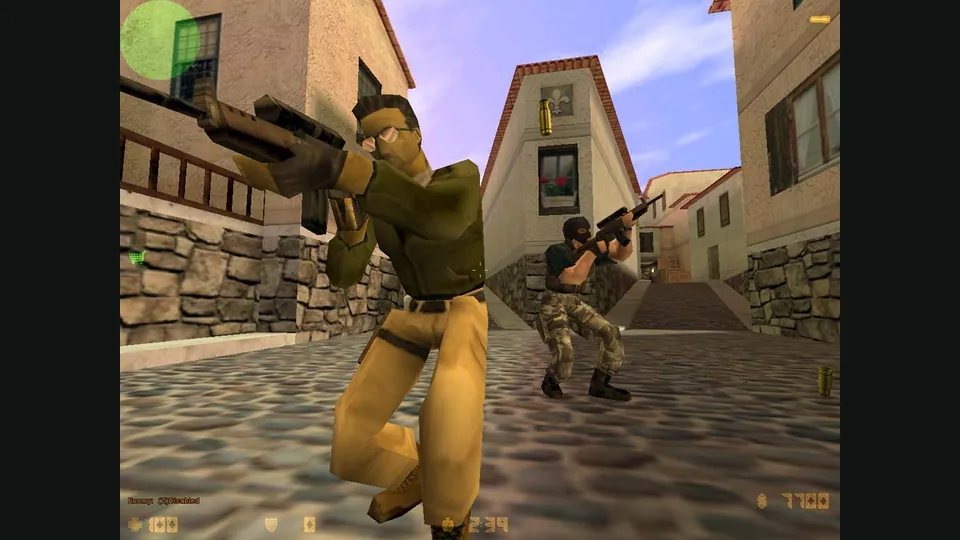
Counter-Strike publisher screenshot. Original-game reference; not the CSJS browser build.
Image credits ↗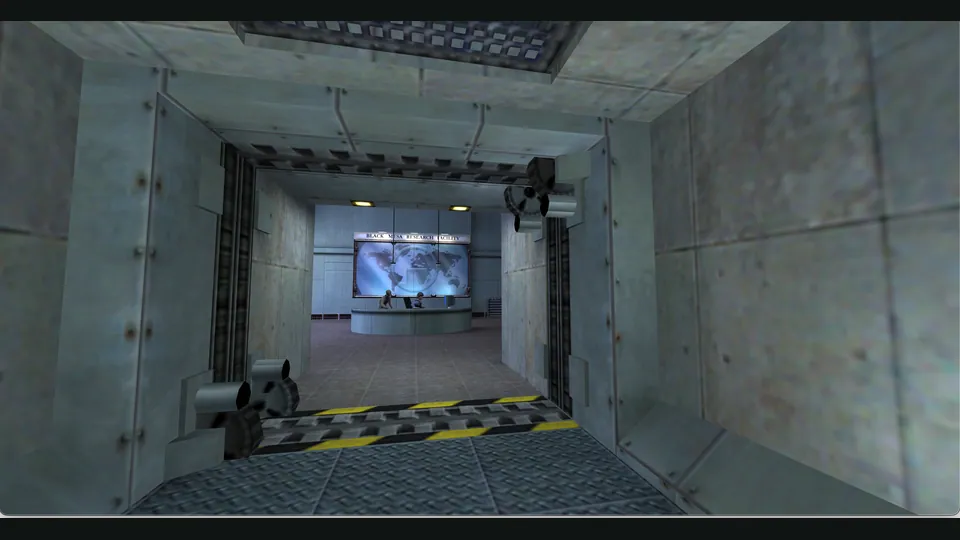
WebXash creator screenshot showing Half-Life: Day One. Browser chrome cropped; not a Counter-Strike match.
Image credits ↗
Browser games on a phone: touch controls, files and saves
Choose a project with an actual touch layout before downloading large game files. A game that draws on a phone screen may still need a keyboard, mouse or controller.
Read guide : Prepare for phone playReference image · credits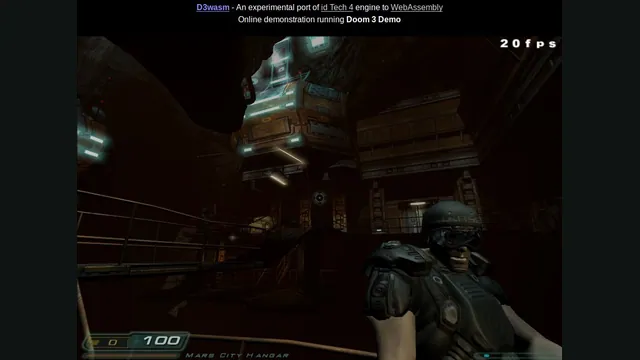
Doom in a browser or native port: WADs, demos and Doom 3
For classic Doom, choose a WAD launcher or a native port. For Doom 3, separate the browser demo from an owned retail installation.
Read guide : Choose a Doom versionProject image · credits