How to use a controller with a browser game
Pairing a controller is only the first step. The browser must expose it, and the specific game must map its sticks and buttons. Start with a project that documents gamepad support.
By Playable · Written
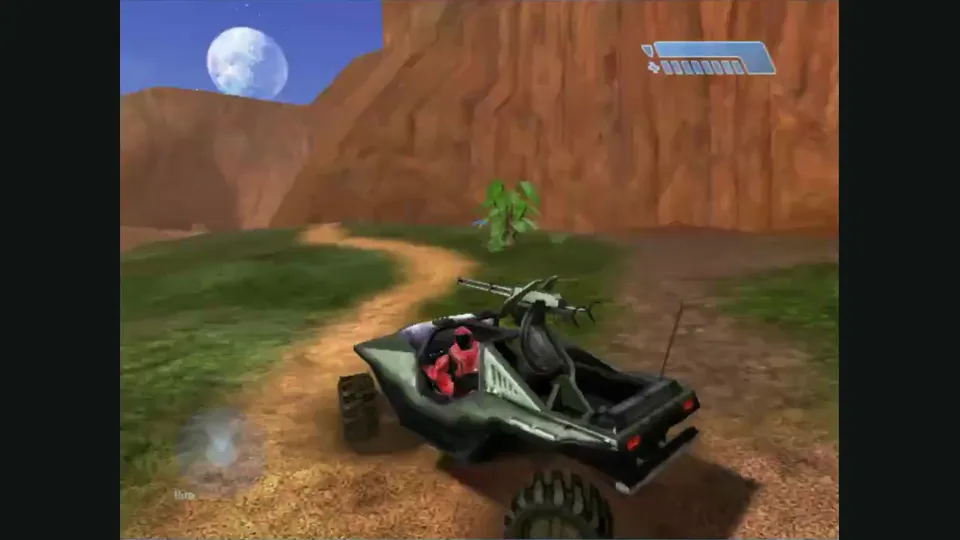
Choose a supported project
HCEMobile documents controller input alongside touch and keyboard controls. PrinceJS documents its own button mappings. Stunts HD describes gamepad steering and triggers. These are useful starting points because the creators explain how to play.
A controller label belongs to the listed implementation. Support in a native edition does not establish support in a browser port of the same game. Check the exact project before preparing game files or inviting another player.
Connect and activate the pad
Connect over USB or pair through your device’s Bluetooth settings. Open the game in a current browser, bring its tab to the foreground, then press a controller button. Browsers may wait for gamepad interaction before making a connected pad visible to a page.
- Check that the operating system sees the controller.
- Activate the game tab and press a button.
- Open the game’s input settings, if available, and choose its controller mode.
- Try movement, camera, confirm, cancel and pause before starting a long session.
Keep a keyboard or touch route available for the launcher. A game can support controller gameplay while its file picker or browser permission prompt still needs another input.
Check what the buttons do
HCEMobile’s guide asks you to pair or plug in the controller and press a button on the start page. It lists Xbox, PlayStation, Switch Pro, MFi and Backbone input. For game-file preparation, use the Halo version guide.
PrinceJS maps movement to the stick or D-pad. A/R/ZR performs jump, climb or block; B/Y/L/ZL handles potion, edge-grab or sword actions. Its Plus and Minus buttons change levels, so read the mapping before treating them as an ordinary pause shortcut.
For Stunts HD, the stick or D-pad steers and the triggers drive. The keyboard remains useful for camera and menu commands. Different button labels across controllers make a quick check worthwhile even when a pad is detected.
If input does not respond
Work through one layer at a time: device connection, active browser tab, then game input settings. Reconnect the pad and press a button again. If the operating system sees it but the game does not, consult that client’s supported-controller notes before assuming a different port’s instructions apply.
If menus work but an action is wrong, look for remapping or an alternate controller backend in the project. Do not use a controller test page as proof of complete game support: detection alone does not validate aiming, triggers, rumble or local multiplayer.
Project reading
See the creators’ setup instructions and feature guides.
Mitchell Hynes Web gameplay, from the creator’s launch demonstration at approximately 1:52. Gameplay area cropped from the published video.
Image credits ↗Halo’s Xbox campaign and invite-based multiplayer, with your own disc image.
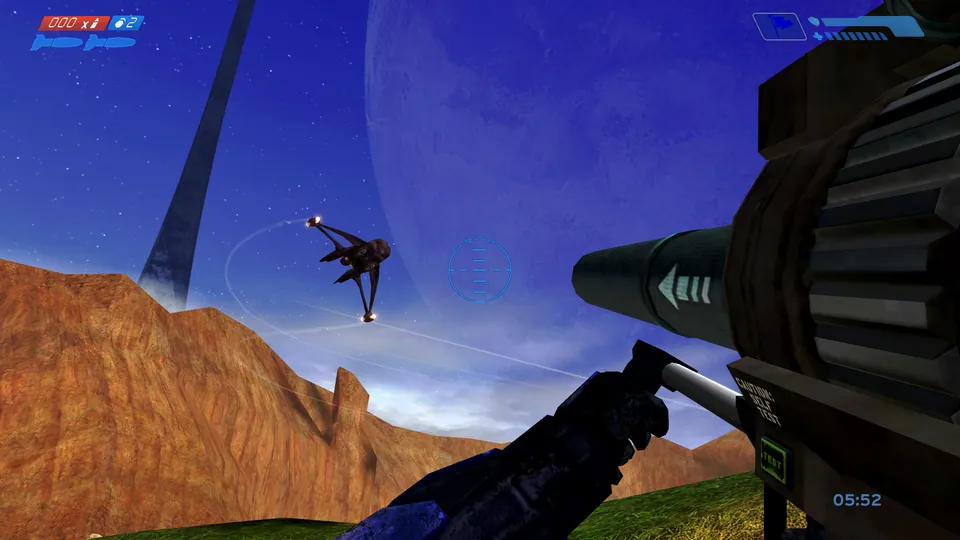
Halo: Combat Evolved multiplayer publisher screenshot from the Anniversary store listing. Original-game reference; not an HCEMobile capture.
Image credits ↗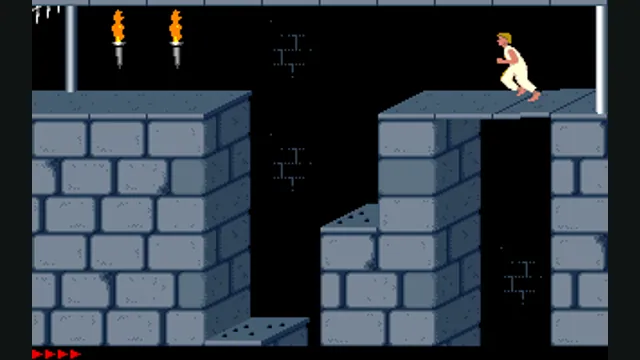
Prince of Persia DOS original-game reference, frame 60 of the linked gameplay animation; not an SDLPoP or PrinceJS capture.
Image credits ↗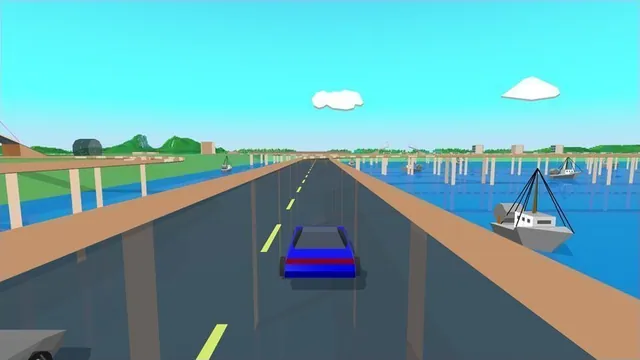
Stunts HD creator screenshot, cropped from the upper-right driving panel of the project montage.
Image credits ↗Stunts 1.1 translated from your own copy, with an HD browser renderer and the original driving physics.
Browser games on a phone: touch controls, files and saves
Choose a project with an actual touch layout before downloading large game files. A game that draws on a phone screen may still need a keyboard, mouse or controller.
Read guide : Prepare for phone playReference image · creditsHalo CE in your browser: which version should you choose?
Start with Hynes for desktop mouse play, HCEMobile for touch controls, or an OpenCE release for native desktop play. Bring your own original Xbox disc image.
Read guide : Choose your Halo CEProject image · credits