Back up browser game saves and check the restored game
Save inside the game, export a separate backup, then import and load it before removing the original. Confirm the restored character, map or level inside the game.
By Playable · Written
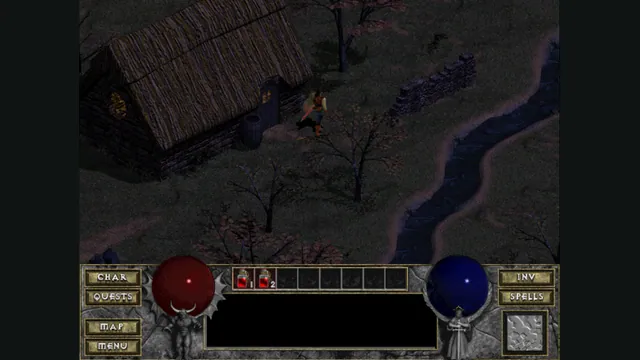
Find where progress lives
Browser storage belongs to the site and browser profile that created it. A different browser, profile or host can open the same game with an empty save list. Private sessions usually discard their stored data when the session ends; ordinary browser storage can also be removed under storage pressure.
Keep three things separate: game data such as DIABDAT.MPQ, an in-game save holding progress, and an exported backup stored outside the site. Copying the game archive does not automatically copy your character. Bookmarking a launcher usually does not back up its save database.
A downloaded .sv or .sav is a separate file you can keep even after the site’s storage is cleared. Importing it puts a copy back into a client’s storage; loading it inside the game is the final step. PrinceJS is a different case: its full address preserves level settings instead of a downloadable save.
Make a copy you can restore
Use this sequence before changing browsers, uninstalling a web app or clearing a site’s data:
- Save inside the game and wait for it to finish.
- Return to that client’s save manager or download control. Export the save you want to keep.
- Find the downloaded file. Keep the original export and filename unchanged; use a dated folder to distinguish backups. Record the project, host and game version beside it.
- Where the client supports import, restore a copy in a separate browser profile. Start with the same project and game edition, a compatible version, and the required authorized game data.
- Load the imported save inside the game. Check the character, level or map and a recognizable piece of progress, such as a road you built. A filename in a list is only the import step.
- Keep the working original and downloaded backup until the restored game opens as expected.
Changing host, engine or edition can change which saves work. Use the receiving project’s compatibility instructions before transferring between ports, and keep the source copy available while checking the destination. If the client offers no export, check its documentation before resetting anything; a universal browser-save download button does not exist.
Use the right project workflow
d07RiV’s DiabloWeb: restore a shareware character
Use the d07RiV client for this sequence. Its shareware character save is separate from the demo’s game data.
- Choose Play Shareware. After playing, press Escape and choose Save Game.
- Reload the host to return to the start screen. Open Manage Saves and use the download icon beside the character’s save, for example
spawn0.sv. - Keep that exported filename when making a backup. In the destination browser profile, open the same host and select the
.svthrough the start-screen file picker. - Choose Play Shareware, select the imported character, then choose Load Game. Check the character and saved location in the game, then make sure you can continue playing.
Keep the source character and export until that final load works. The Diablo version guide explains the separate choices of browser client, demo data and retail DIABDAT.MPQ.
JohnImril’s Diablo Web
In JohnImril’s separate client, open Manage Saves on the start screen to export. To make the first import when that control is absent, drop a .sv file onto the start screen; after import, Manage Saves appears. Later imports can use its upload control. This client has no cloud-save service. Launch with the matching game data and load the character before treating the transfer as complete.
WebXash
The save manager groups saves by game or mod and downloads the selected save. Imported custom saves are placed in xash-custom-saves and made available when a game launches. Launch the matching game or mod, then use its load menu to check the saved scene. The manager is disabled for Counter-Strike 1.6. The Half-Life version guide explains WebXash’s file and mod setup.
PrinceJS
PrinceJS records level, maximum health, remaining time and guard strength in URL parameters. Copy or bookmark the current full URL, including everything after ?. Reopen it and check the level, health and time; expect to return to the level entrance rather than your previous position within a room.
Refresh your saved link as the game updates its settings in the address. Keep the earlier bookmark until the new one opens as intended. This workflow belongs to PrinceJS; other ports use different progress systems. Compare them in the Prince of Persia version guide.
OpenTTD Online: save first, then export
In OpenTTD Online, saving inside the game and downloading a backup are separate actions.
- Open the game’s floppy-disk menu, choose Save game, name the save and choose Save.
- Open the host’s tools menu in the upper-left corner and choose Export Save. If several saves exist, select the one you want, then choose Export. Keep the downloaded
.savfile somewhere safe. - To restore it, choose Import Save from the same tools menu and select your backup. Keep a separate copy before importing a file with the same name.
- Open the game’s Load Game menu, select the imported file and choose Load. Once the map opens, find a recognizable road or station you built and check the company and date. Pan the map to confirm you have returned to the running game. Import confirmation and a save-list entry come before this final check.
For example, a short road saved before export should still be present after you load the imported map. Use your own network as the reference before replacing an older backup. The OpenTTD browser and native guide covers version choice and compatible game setup.
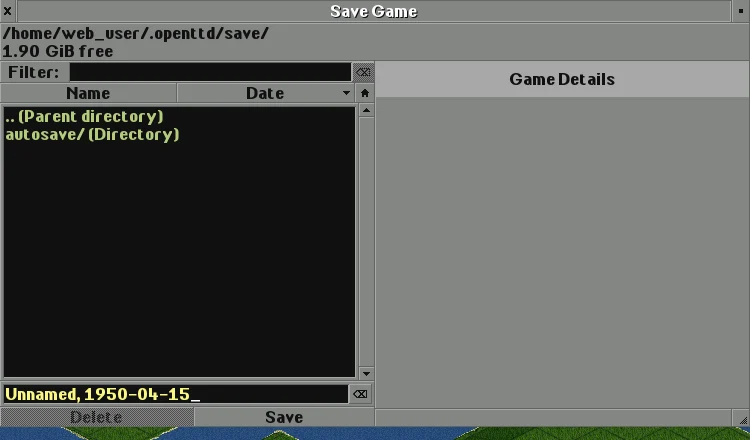
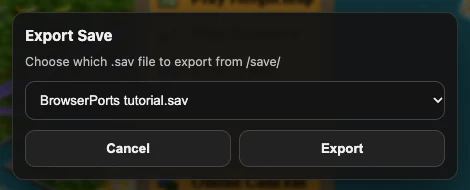
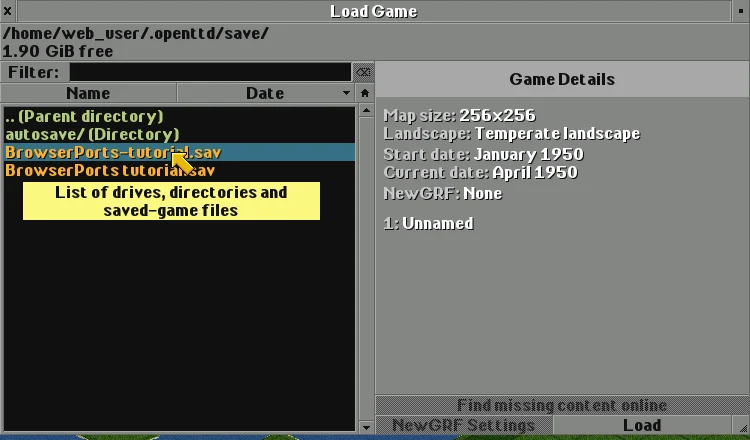
Playable captures with OpenTTD and OpenGFX2 Classic. Media credits and sources · GPL-2.0 license.
Check before clearing anything
If progress seems missing, reopen the exact host in the original browser profile. Check whether you switched between an installed web app and a browser tab, selected another imported game copy, or loaded a different mod. Keep any old export until the expected progress is visible.
For Diablo Web’s Game already open message, save in the other tab or app, close it, then choose Try Again. Returning to the menu alone does not release that client’s save storage. Clearing data can remove the very files you are trying to recover.
Reinstalling game data is not a recovery method for a deleted save. A backup is most useful when it is made before the change, while the original still opens.
Project reading
See the creators’ setup instructions and feature guides.
Diablo Web by JohnImril creator screenshot.
Image credits ↗A modernized client with shareware, MPQ import and save export.
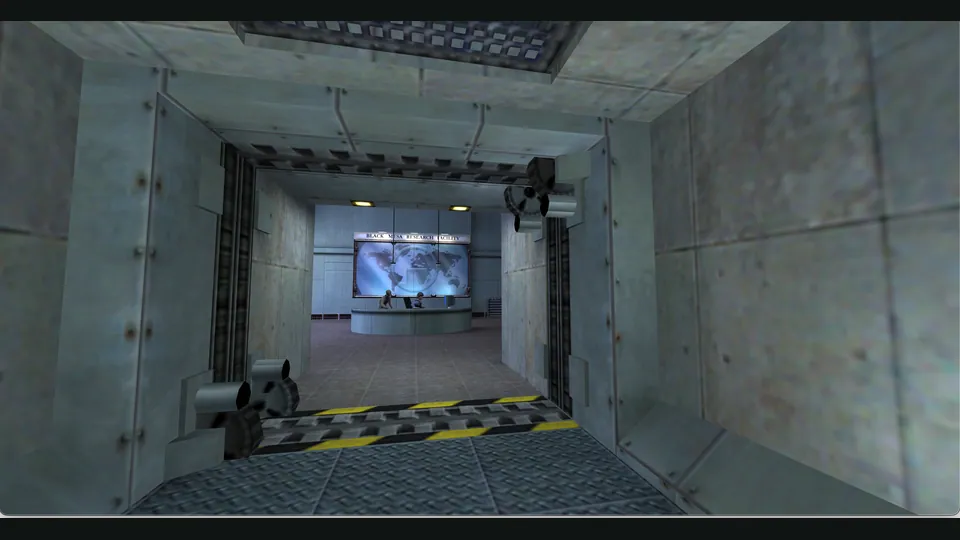
WebXash creator screenshot showing Half-Life: Day One. Browser chrome cropped; not a Counter-Strike match.
Image credits ↗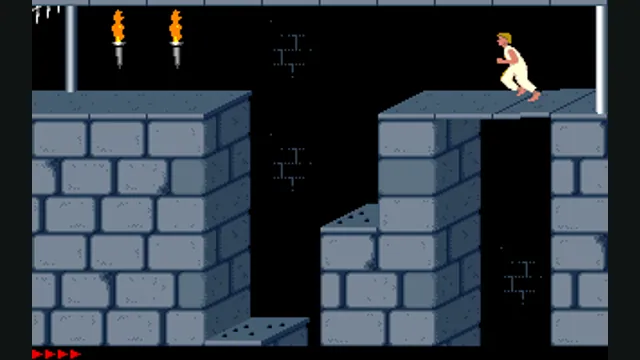
Prince of Persia DOS original-game reference, frame 60 of the linked gameplay animation; not an SDLPoP or PrinceJS capture.
Image credits ↗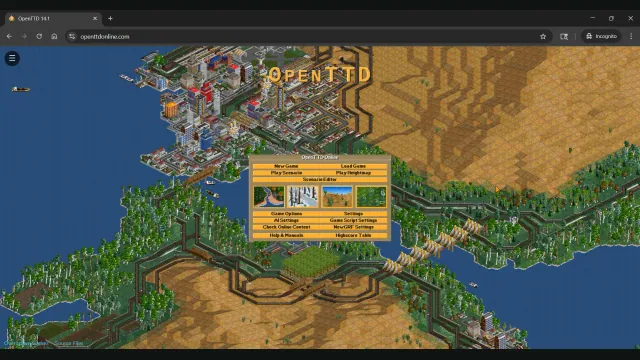
OpenTTD Online creator screenshot of the main menu over a transport network.
Image credits ↗Build railways and transport networks with OpenTTD’s free assets and browser save transfers.
Diablo browser versions: choose a demo, retail game or Hellfire
Try the original Diablo with a hosted demo, use your own MPQ for the retail game, or choose native DevilutionX for Hellfire and a controller-focused setup.
Read guide : Choose your Diablo versionProject image · creditsHalf-Life in a browser: choose WebXash or Pixelsuft
WebXash offers the clearer owned-file and save workflow. Pixelsuft’s older launcher exposes separate data and filesystem choices for a more manual setup.
Read guide : Half-Life browser setupProject image · creditsOpenTTD in a browser or on desktop: start a route and move your saves
OpenTTD Online offers a browser session with free assets and save transfers. Native OpenTTD adds the upstream desktop file and multiplayer workflow.
Read guide : Choose browser or native OpenTTDProject image · creditsPrince of Persia: PrinceJS in a browser or SDLPoP on desktop?
PrinceJS starts in a browser and preserves level settings in a link. SDLPoP is an installed DOS-based port with exact-state quicksaves and replays.
Read guide : Choose PrinceJS or SDLPoPReference image · credits