OpenTTD in a browser or on desktop: start a route and move your saves
OpenTTD Online offers a browser session with free assets and save transfers. Native OpenTTD adds the upstream desktop file and multiplayer workflow.
By Playable · Written
Choose the host or desktop application
Start with Owen Gerke's OpenTTD Online to build a transport network in a tab. Choose native OpenTTD when desktop file management or multiplayer is central to the session. The browser host is an independent port at openttdonline.com; it is not the official OpenTTD download site.
Swipe or scroll to compare all columns →
| Route | Starting point | Choose it for |
|---|---|---|
| OpenTTD Online | The host identifies OpenTTD 15.3 with free base assets included. | A browser session with explicit save import/export tools. |
| Native OpenTTD | A stable Windows, macOS or Linux installation. | Normal local files and the upstream multiplayer workflow. |
Both routes can begin with replacement assets instead of a Transport Tycoon Deluxe disc: OpenGFX supplies graphics, OpenSFX effects and OpenMSX music. The browser build bundles them. A native installer may fetch them, or you can follow the upstream base-set instructions.
Build a first bus route
For the browser route, open OpenTTD Online's player, allow its engine and resources to finish loading, then start a new game. For native play, install the stable package from OpenTTD and select your base sets. Stable is the upstream recommendation for ordinary play; nightly builds are a separate choice.
Build a small bus service first. It teaches the essential loop—stations, depot, vehicle and orders—without the junctions and signalling of a railway. Following the official bus tutorial:
- Find a town and open Road construction. Place two bus stops in different parts of it, with entrances connected to the road.
- Build a connected road depot, open it, select New Vehicles and buy a bus.
- Open the bus's Orders. Use Go To and click the first stop, then repeat for the second.
- Click the vehicle's Stopped status to start it, and unpause the game.
If the bus stays put, inspect the depot's road connection, both stop orientations and the orders before buying another vehicle. A short line is a learning exercise, not a guarantee of strong profit.
Controls, add-ons and multiplayer
Use a mouse or trackpad for the dense building interface. Right-drag pans the map; the browser host documents wheel or trackpad zoom. Hover for tooltips. In OpenTTD's standard keyboard layout, F1 pauses and Esc cancels an active tool; a Mac keyboard may require Fn for function keys. The hotkey reference covers construction shortcuts.
The browser site's Online Content support refers to add-ons such as AIs, graphics and scenarios. It does not establish multiplayer support for this host. Its separately linked iOS build is a test route. Prefer a desktop-sized screen and precise pointer for the main player; fitting the canvas onto a phone does not make all its menus comfortable to use.
For native multiplayer, open Multiplayer, search the internet list or add a friend's invite code, then join the matching server. The upstream manual identifies red server indicators as a version mismatch and yellow ones as missing NewGRFs. Resolve the indicated mismatch before changing network settings.
Move a save between installations
A save inside the browser and a downloaded backup are separate steps. Use the host's own toolbar, not the browser's Save Page command:
- Save the current game through OpenTTD's in-game save menu, using a name you will recognize.
- Open the player toolbar and choose Export Save. Select that file in the export dialog and download it.
- On another browser installation, use Import Save, select the downloaded file, then open it through the game's load menu.
- For native OpenTTD, put the exported save in its
save/directory and load it. Keep the original export until the restored game opens correctly.
The host toolbar has separate scenario and heightmap controls; use the matching file type. Its Drive buttons are optional alternatives to local file transfer. The basic export/import route needs no cloud-account setup.
Native saves commonly sit under Documents/OpenTTD on Windows and macOS, or the OpenTTD data directory on Linux. The directory guide identifies save/ and save/autosave/, including portable-installation differences.
Recover from common mismatches
Check versions before moving a growing company back and forth. Upstream OpenTTD promises that newer revisions load older uncorrupted saves; the reverse is not promised. A save made by a newer native build may therefore be too new for the browser host's advertised 15.3 build.
Keep the NewGRFs and other content a saved game depends on. When a load reports missing content, check those dependencies rather than overwriting your working save. Use the client's Online Content route where the required add-ons are available.
If an export list has no current game, make an in-game save first and reopen Export Save. If progress disappears after changing profiles or devices, return to the original browser and export from there. Clearing site data removes the local working copy; the browser-save guide explains how to preserve an independent backup before cleanup.
Project reading
See the creators’ setup instructions and feature guides.
- Owen Gerke · unofficial browser port and bundled assets ↗
- OpenTTD Online · version, tutorial and iOS test route ↗
- OpenTTD Online · save import and export toolbar ↗
- OpenTTD · native installation and save compatibility ↗
- OpenTTD · first bus route ↗
- OpenTTD · keyboard shortcuts ↗
- OpenTTD · local directories ↗
- OpenTTD · multiplayer and mismatch indicators ↗
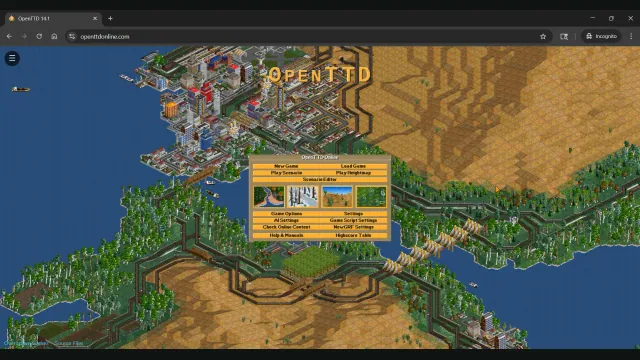
OpenTTD Online creator screenshot of the main menu over a transport network.
Image credits ↗Build railways and transport networks with OpenTTD’s free assets and browser save transfers.
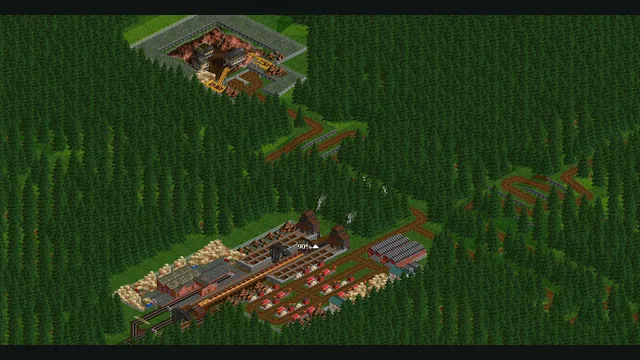
OpenTTD gallery screenshot submitted by ColdIce; a working transport network.
Image credits ↗
Back up browser game saves and check the restored game
Save inside the game, export a separate backup, then import and load it before removing the original. Confirm the restored character, map or level inside the game.
Read guide : Back up your browser savesProject image · credits
Command & Conquer: choose Chrono Divide, GeneralsX or OpenRA
Start with the game you want: Red Alert 2, Generals Zero Hour and OpenRA’s earlier Westwood games have different armies, rules and setup.
Read guide : Choose your Command & ConquerReference image · credits