Plants vs. Zombies 2
Defend the lawn in Gardendless, a browser remake with no file import.
 Play
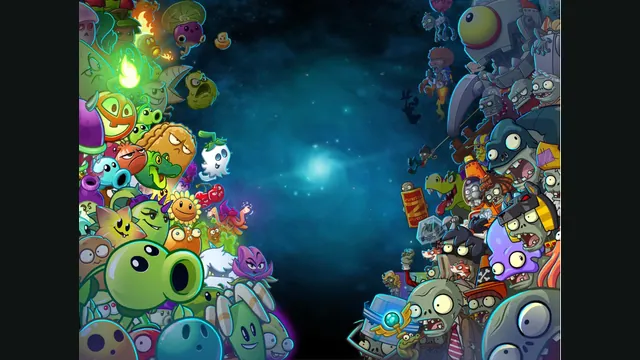
PlayGardendless project artwork; not a gameplay capture.
About this version
Gardendless rebuilds Plants vs. Zombies 2 with web technology. Its creator-hosted browser version starts with a playable lawn tutorial and includes its own progression, plant roster and custom-level tools.
- Project
- PvZ2 Gardendless
- Original game
- Plants vs. Zombies 2
Build a defense one lane at a time
Gardendless turns each lawn into a resource and positioning puzzle. Collect sun, spend it on seed packets and place plants where their attacks can stop the zombies walking toward the house. A plant protects a lane rather than chasing enemies, so the placement decision matters before a wave reaches it.
The opening tutorial starts with a narrow strip of grass and Peashooters. It teaches planting, replenishing sun and holding the lane before asking you to manage a larger defense. Watch the sun total and the card’s recharge instead of trying to fill every square immediately.
A separate Plants vs. Zombies 2 remake
Gaozih’s Gardendless project rebuilds Plants vs. Zombies 2 using web technology, including Cocos. This is the fan project’s browser build, with its own changes and release cycle. It is independent of EA and the original mobile application.
The project’s online version can lag behind its downloadable releases. Use its own menus and guides for available plants, progression and settings; a feature in another PvZ2 edition does not automatically describe this build.
Start in the browser
Open the browser game and let the first resource load finish. Choose Play from the title screen. A fresh profile begins at New Player’s House, where selecting a seed packet and clicking a lawn square places the plant.
Use the mouse for the first tutorial. Collect the falling sun when prompted, then plant the next Peashooter after its card becomes available. The upper-right pause button gives you a break without leaving the page.
Back up progress and try local levels
Select your player name in the main menu to export a save. Keep that export before clearing site storage or changing packages. The creator warns that progress is not automatically inherited between differently packaged versions.
For a custom level, the documented route is Play Local Level in the game settings followed by selecting its JSON file. Custom levels are optional; you do not need to obtain one before starting the built-in tutorial.
Choose a desktop browser first
The project recommends Chrome 114 or newer or Microsoft Edge for online play and notes possible Firefox compatibility issues. Its native Windows requirements are separate from these browser recommendations.
Allow time for the first load and keep a save export when moving between versions. A browser launch avoids an installation and original-file preparation, but still needs to retrieve the game’s resources.
Gardendless web projectGardendless online browser requirementsGardendless save and level help
Before you play
Do I need the original game files?
The hosted game loads its own resources. No original game installation or file import is needed to start.
Creator-reported · Project guideHow do I get started?
Open the creator’s browser build and wait for its resources to load. Choose Play on the title screen to begin the New Player tutorial. Select the Peashooter card, click the lawn to plant it and collect falling sun.
- Open the creator’s browser build and wait for its resources to load.
- Choose Play on the title screen to begin the New Player tutorial.
- Select the Peashooter card, click the lawn to plant it and collect falling sun.
Which devices and browsers work?
The creator recommends Chrome 114 or newer or Microsoft Edge for online play. Firefox may have compatibility issues. Start with a desktop browser and mouse.
Creator-reported · Project guideWhat are the controls?
Use the mouse to select seed packets, place plants and collect sun. The tutorial also introduces number-key planting shortcuts. Use the upper-right pause button to pause.
Creator-reported · Project guideHow do saves work?
Select your player name on the main menu to export a save. Different platforms and packages do not automatically share progress.
Creator-reported · Project guideWhat should I know before playing?
First loading can be slow, and the online build can differ from downloadable releases. Export a save before changing versions or clearing browser data.
Creator-reported · Project guide